

Gemini Omni Flash 1.1 może stworzyć 40-sekundową scenę, ale nie ma przycisku do 40 sekund. Prawdziwe pytanie stojące za długością wideo gemini omni flash 1.1 brzmi: jak sprawić, by każde kolejne 10 sekund wyglądało jak ten sam film.
Bezpośrednia odpowiedź: jedno wyjście to od 3 do 10 sekund. 40-sekundowa scena to klip startowy plus maksymalnie 3 kolejne rozszerzenia, każde zbudowane na poprzednim wideo. Google dokumentuje wyjściowe wideo od 3 do 10 sekund przy 24 FPS, a notatki premierowe wersji 1.1 opisują rozszerzenia 10-sekundowe do łącznie 40 sekund (Dokumentacja modelu Google, sierpień 2026; wpis premierowy Google, sierpień 2026).
To zmienia zadanie. Pierwszy klip ustanawia postać, ubiór, oświetlenie, wysokość kamery i dźwięk otoczenia. Każde rozszerzenie przenosi te wybory dalej. Ten przewodnik wykorzystuje sekwencję czterech przebiegów po 10 sekund, a następnie pokazuje 2 krótsze warianty dla istniejącego materiału i akcji.
Najważniejsze wnioski
- Jedno wyjście Gemini Omni Flash 1.1 trwa od 3 do 10 sekund.
- 40 sekund oznacza 1 klip bazowy plus 3 rozszerzenia.
- Wgrywaj poprzednie wideo, nie tylko jego ostatnią klatkę.
- Ustal postać, kamerę, światło i audio w każdej kontynuacji.
- Najpierw przygotuj wersję roboczą, zanim zapłacisz za finalne rozszerzenia.
Prezentacja 40-sekundowego wideo Gemini Omni Flash 1.1
Ciągłe 40-sekundowe złożenie: ta sama odkrywczyni opuszcza piaskowcowe katakumby, odkrywa pływającą bibliotekę i kończy na stabilnym szerokim ujęciu. Ostatnia linia jest zachowana jako wideo, ponieważ dialog i atmosfera dźwiękowa są częścią testu ciągłości.
Dlaczego Długość Wideo Gemini Omni Flash 1.1 Sprawia Ludziom Problem
„40 sekund” opisuje łączną długość historii, a nie pojedyncze wyjście. Pierwszy przebieg tworzy 10-sekundowy otwierający fragment. Kolejne 3 przebiegi tworzą nowe kontynuacje. Połącz cztery wyjścia w kolejności po sprawdzeniu przejść między każdą parą.
Większość złych rozszerzeń zaczyna się od niejasnego promptu, takiego jak „kontynuuj”. Generator otrzymuje zbyt mało wskazówek dotyczących odkrywczyni, czerwonej kurtki, latarni, pozycji obiektywu czy nastroju pomieszczenia. Prompt, który wprowadza kilka osób, nową lokalizację i nowy styl wizualny naraz, daje jeszcze więcej możliwości zboczenia z kursu.
Google twierdzi, że model wykorzystuje ostatnie 10 sekund poprzedniego wideo jako kontekst rozszerzenia i że końcowe klatki wejściowe można dostosować do płynnego połączenia. Obsługuje również przesyłanie wideo i materiałów referencyjnych dla rozszerzeń (przewodnik Google po generowaniu i edycji Omni, sierpień 2026). Traktuj ten kontekst jako pomoc w ciągłości, a nie powód do zaprzestania określania ważnych stałych.
td {white-space:nowrap;border:0.5pt solid #dee0e3;font-size:10pt;font-style:normal;font-weight:normal;vertical-align:middle;word-break:normal;word-wrap:normal;}
| Pomysł na długość | Co to oznacza | Najlepsze zastosowanie | Częsty błąd | Lepsze rozwiązanie |
| Wyjście 3–10 s | Jeden wygenerowany klip | Ustalenie wyglądu lub akcji | Pisanie promptu na cały film krótkometrażowy | Daj klipowi 1 wyraźny beat |
| Scena 20–40 s | Kolejne rozszerzenia | Połączone odkrycie lub mini historia | Otwieranie od nowa z nieruchomej klatki | Wgraj bezpośrednio poprzednie wideo |
| Wersja robocza 720p | Obecna publiczna ścieżka Atlas Cloud | Testowanie ruchu i przejść | Zaczynanie od skalowania końcowego | Najpierw potwierdź każde 10-sekundowe połączenie |
Przepływ Pracy Gemini Omni Flash 1.1 w Jednej Karcie Przeglądarki
Dla twórcy najczystszy przepływ pracy to 1 karta przeglądarki: utwórz klip bazowy, wgraj to wideo, aby je rozszerzyć, a następnie powtórz. Atlas Cloud trzyma 3 istotne ścieżki razem, co ma znaczenie, gdy musisz zachować krótki materiał źródłowy między przebiegami zamiast eksportować i odbudowywać swoją konfigurację.
td {white-space:nowrap;border:0.5pt solid #dee0e3;font-size:10pt;font-style:normal;font-weight:normal;vertical-align:middle;word-break:normal;word-wrap:normal;}
| Etap | Ścieżka | Długość | Zadanie | Dostępność w Atlas Cloud |
| Klip bazowy | Tekst-na-wideo | 10 s | Ustalenie postaci, świata i otwierającego ruchu | Tak |
| Rozszerzenie 1 | Edycja wideo | 10 s | Kontynuacja odkrycia | Tak |
| Rozszerzenie 2 | Edycja wideo | 10 s | Przejście z katakumb do biblioteki | Tak |
| Rozszerzenie 3 | Edycja wideo | 10 s | Zamknięcie finałowej akcji i dialogu | Tak |
| Wariant A | Referencja-na-wideo | 10 s | Utrzymanie postaci i ubioru | Tak |
| Wariant B | Tekst-na-wideo | 8 s | Testowanie czasu akcji | Tak |
Obecne publiczne formularze Gemini Omni Flash w Atlas Cloud udostępniają 3–10 sekund, proporcje 16:9 lub 9:16 oraz 720p dla tych ścieżek. Dlatego ta procedura najpierw waliduje krótką sekwencję w 720p. Nie deklaruje natywnego 4K ani 40-sekundowego wyjścia jednym kliknięciem w tym środowisku testowym.
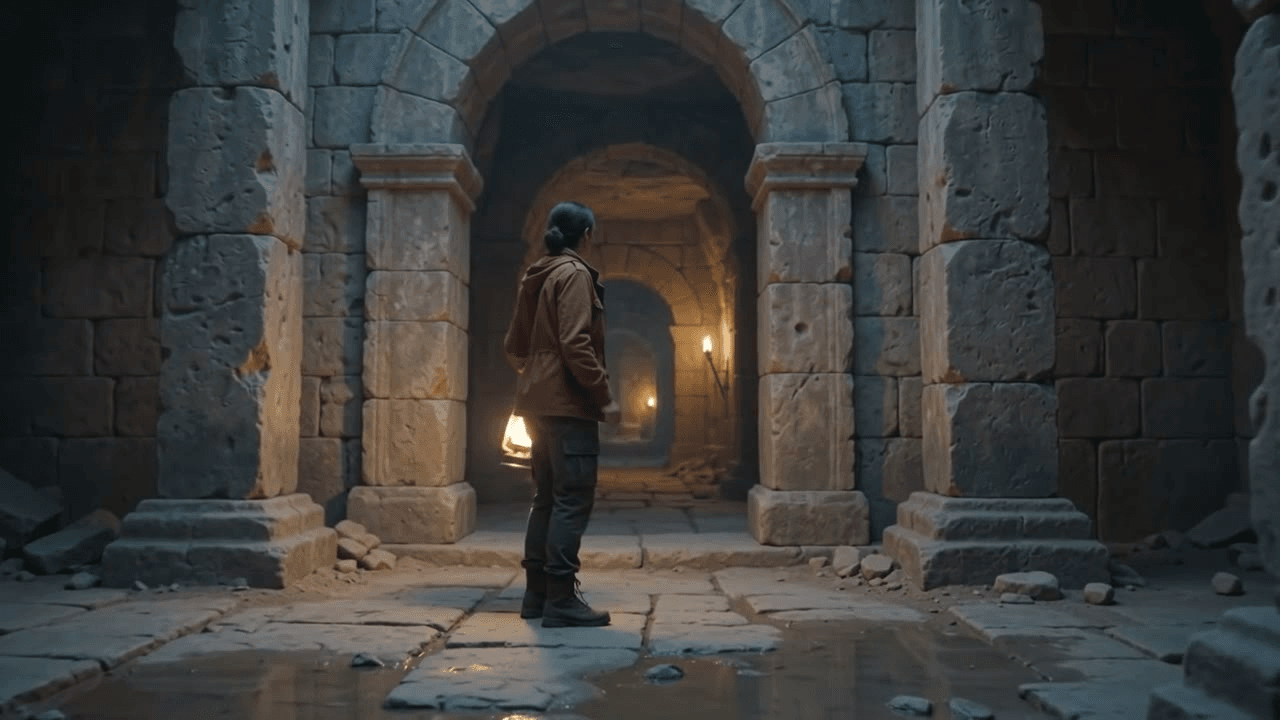
Klatka bazowa Gemini Omni Flash 1.1 z odkrywczynią, latarnią i piaskowcowymi katakumbami
Rzeczywista wygenerowana klatka bazowa: odkrywczyni, latarnia, piaskowcowe otoczenie i początkowy kierunek kamery są ustalone przed rozszerzeniami. Ukończone przykłady poniżej wykorzystują zatwierdzone ustawienia 10 s, 16:9, 720p.
Krok 1: Utwórz Klip Bazowy
Otwórz Gemini Omni Flash Tekst-na-wideo. Ten pierwszy przebieg robi więcej niż tylko tworzy ładne otwarcie. Definiuje fakty wizualne, które każde rozszerzenie musi zachować.
plaintext1A cinematic continuous shot inside ancient sandstone catacombs at blue hour. A woman explorer in a rust-red field jacket carries a brass lantern and walks toward a tall archway. Dust moves through the lantern beam, shallow puddles reflect the pillars, realistic footsteps and a quiet low wind. The camera tracks behind her at walking pace, then arcs to a three-quarter profile as she looks toward a faint warm light beyond the arch. Keep her face, red jacket, lantern, lighting, and lens language consistent for the next scene. No captions, no cuts.
Wybierz 10 sekund, 16:9, 720p i poziom myślenia: wysoki. Uruchom go raz, a następnie zachowaj to wideo jako źródło do Kroku 2.
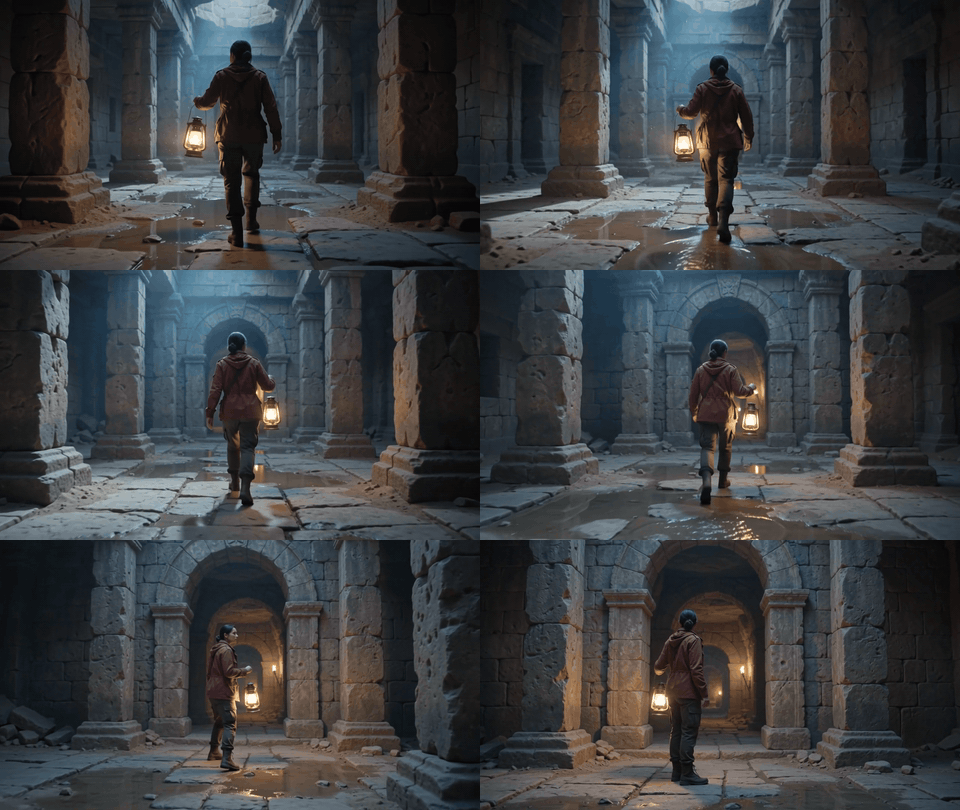
Gemini Omni Flash 1.1 10-sekundowy klip bazowy: odkrywczyni z latarnią wchodzi w piaskowcowy łuk
Wyjście Kroku 1: 10-sekundowa kotwica w 720p wykorzystuje tylny ruch kamery, który łukiem przechodzi do widoku z trzy czwartej, zamiast prostego zoomu.
Krok 2: Rozszerz Scenę
Otwórz ścieżkę Edycja wideo i wgraj samo wideo z Kroku 1. Końcowa klatka może odpowiadać pojedynczej klatce, ale nie da rozszerzeniu rytmu chodzenia, ruchu latarni ani dźwięku, które niesie wideo źródłowe.
plaintext1Continue directly from the final moment of the supplied video. Preserve the same woman, rust-red field jacket, brass lantern, sandstone textures, blue-hour lighting, camera height, and natural footsteps. She passes through the archway and notices pale gold book pages drifting in the air ahead. The tracking camera stays behind her, then makes a smooth rightward reveal. The wind becomes slightly warmer and paper rustles naturally. One continuous shot, no reset, no title text.
Wybierz 10 sekund, 16:9, 720p i poziom myślenia: wysoki. Użyj ukończonego rozszerzenia jako źródła do Kroku 3.
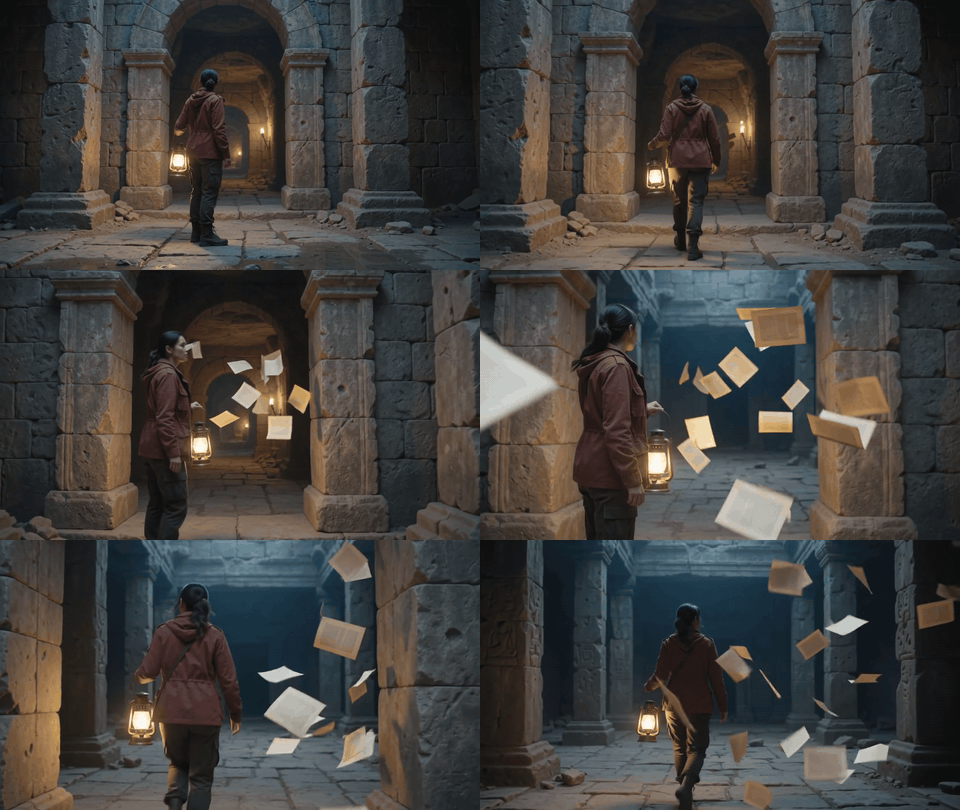
Wyjście Kroku 2: Odkrywczyni i latarnia pozostają spójne, podczas gdy prawy ruch kamery podąża za kartkami przecinającymi wiązkę światła.
Krok 3: Odsłonięcie Biblioteki Gemini Omni Flash 1.1
Wgraj wyjście z Kroku 2. Zachowaj ustalony kierunek kamery i język kolorów. Lokalizacja zmienia się tutaj, więc prompt opisuje most między miejscami zamiast wymuszać twardy reset.
plaintext1Continue directly from the supplied video. Preserve the explorer, red jacket, lantern, camera direction, warm-blue color grade, and the drifting pages. The camera follows her through the opening into a vast hidden library where tall shelves and books float weightlessly in a dark vaulted room. She reaches out and one page circles her lantern. Keep the movement physically plausible, with gentle paper flutter and a seamless continuous transition from catacomb to library. No cuts and no on-screen text.
Wybierz 10 sekund, 16:9, 720p i poziom myślenia: wysoki. Zapisz to ukończone wyjście na potrzeby finalnego rozszerzenia.
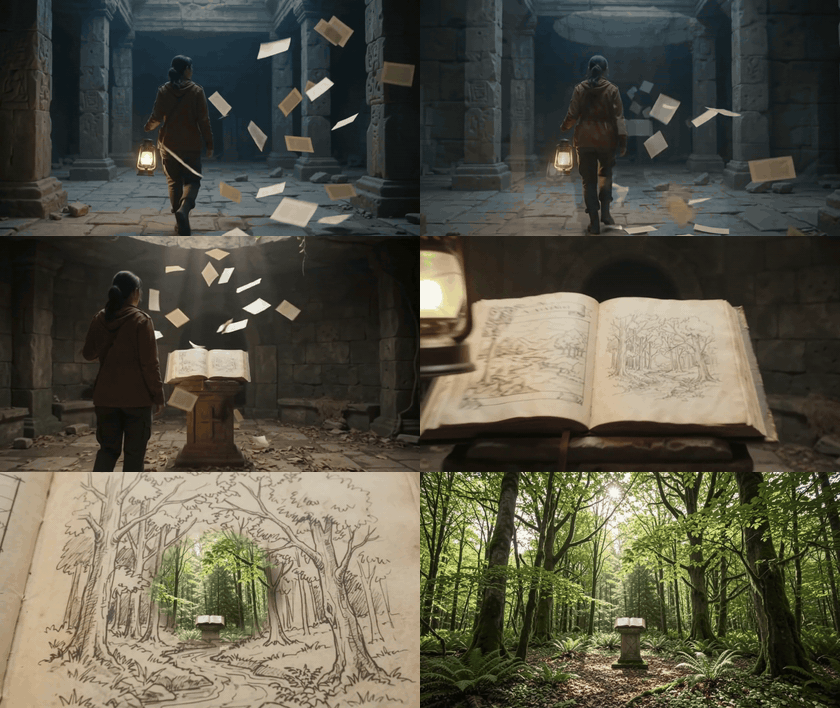
Wyjście Kroku 3: Odkrywczyni, latarnia, ruch stron i ruch kamery kontynuują się przez wszystkie trzy panele.
Krok 4: Zakończ 40-Sekundową Scenę Gemini Omni Flash 1.1
Wgraj wyjście z Kroku 3 i nadaj historii jedno zakończenie. Dialog jest podany dokładnie, ponieważ finalny klip potrzebuje konkretnego mówionego przejścia, a nie generycznego pejzażu dźwiękowego.
plaintext1Continue directly from the supplied video. Preserve the same explorer, wardrobe, lantern, floating library, lens, lighting, and paper motion. The camera begins behind the explorer, then curves around to face her as the books open a glowing path between the shelves. She pauses, looks toward the light, and walks into the path. End on a stable wide shot with the library architecture, moving books, lantern, and explorer all visible. Use an authentic camera orbit followed by a wide reveal, never a simple push-in. No dialogue, no subtitles, no logo.
Wybierz 10 sekund, 16:9, 720p i poziom myślenia: wysoki. Połącz 4 ukończone wyjścia w kolejności bez nakładania. Zachowaj natywne audio każdego segmentu, a następnie opublikuj 40-sekundowy wynik jako jedno wideo.

Cztery momenty z ukończonej 40-sekundowej sekwencji Gemini Omni Flash 1.1: podejście do katakumb, odsłonięcie strony, oświetlona książka i szerokie ujęcie pływającej biblioteki
Wyjście Kroku 4: cztery kolejne klatki z ukończonego 40-sekundowego wideo, kończące się stabilnym szerokim ujęciem z odkrywczynią, latarnią, książkami i architekturą biblioteki widocznymi w całości.
Koszt Gemini Omni Flash 1.1
Ile Może Kosztować Przebieg 10-Sekundowy i 40-Sekundowy
Publiczny katalog modeli Atlas Cloud nie wykazywał żadnej plakietki promocyjnej dla poniższych ścieżek w momencie sprawdzenia 1 września 2026. Są to wyliczenia tylko za wyjście na podstawie podanych stawek początkowych, a nie wyceny ponowień, nieudanych przebiegów, przechowywania ani prac redakcyjnych.
td {white-space:nowrap;border:0.5pt solid #dee0e3;font-size:10pt;font-style:normal;font-weight:normal;vertical-align:middle;word-break:normal;word-wrap:normal;}
| Przebieg | Podana stawka początkowa | Długość wyjścia | Wyliczenie tylko za wyjście |
| Klip bazowy tekst-na-wideo | 0,125 $/s | 10 s | 1,25 $ |
| Rozszerzenie edycji wideo | 0,14 $/s | 10 s | 1,40 $ za każde |
| Główna sekwencja 40 s | 1 klip bazowy + 3 edycje | 40 s | 5,45 $ |
| Wariant referencja-na-wideo | 0,135 $/s | 10 s | 1,35 $ |
| Test tekst-na-wideo | 0,125 $/s | 8 s | 1,00 $ |
Zaplanuj budżet na wersje robocze. Czteroczęściowa historia może wymagać ponowienia, gdy przejście, linia głosu lub przekazanie ubioru nie wypali. Google rozróżnia także podglądy o niższej rozdzielczości od wyjścia o wyższej rozdzielczości i skalowania, więc oceń rozdzielczość jako osobną decyzję dotyczącą dostarczenia, gdy sekwencja już zadziała.
Prawa i ujawnienia. Google twierdzi, że wygenerowane wideo Omni jest oznaczone SynthID. Używaj obrazów referencyjnych, materiałów wideo i głosów, które posiadasz lub masz pozwolenie na użycie. Oznaczaj materiał wygenerowany przez AI tam, gdzie platforma publikacyjna tego wymaga, i nigdy nie przedstawiaj wygenerowanej sceny jako prawdziwych wiadomości, prawdziwego wydarzenia produktowego ani zweryfikowanej wypowiedzi człowieka.
Często Zadawane Pytania
Jaka jest maksymalna długość wideo Gemini Omni Flash 1.1?
Jedno wyjście trwa od 3 do 10 sekund. Gemini Omni Flash 1.1 może osiągnąć 40 sekund łącznie, zaczynając od klipu i rozszerzając go o 10-sekundowe przyrosty.
Czy Gemini Omni Flash 1.1 może wygenerować 40-sekundowe wideo w jednym przebiegu?
Nie. 40-sekundowy wynik to sekwencja wygenerowanych klipów. W tym przepływie pracy to 1 dziesięciosekundowy klip bazowy plus 3 dziesięciosekundowe rozszerzenia.
Jak rozszerzyć wideo Gemini Omni Flash z 10 sekund do 40 sekund?
Wgraj bezpośrednio poprzednie wideo do ścieżki rozszerzenia, a następnie powtórz postać, ubiór, scenę, obiektyw, ruch i audio, które mają być kontynuowane. Powtórz 3 razy i połącz ukończone klipy w kolejności.
Czy Gemini Omni Flash 1.1 zachowuje tę samą postać podczas rozszerzania wideo?
Model może wykorzystać ostatnie 10 sekund kontekstu źródłowego do wsparcia ciągłości, ale stabilność postaci poprawia się, gdy każdy prompt zachowuje te same fakty wizualne. W przypadku wyraźnej osoby lub stroju dodaj obrazy referencyjne tam, gdzie ścieżka je akceptuje.
Jakiej rozdzielczości użyć dla wersji roboczych wideo Gemini Omni Flash 1.1?
Użyj rozdzielczości, którą oferuje Twoja faktyczna ścieżka dla wersji roboczej. Ten przepływ pracy w Atlas Cloud używa 720p, dzięki czemu możesz ocenić 10-sekundowe przejścia przed osobną decyzją o rozdzielczości docelowej.
Ile kosztuje 40-sekundowe wideo Gemini Omni Flash w Atlas Cloud?
Przy sprawdzonych stawkach początkowych 10-sekundowy klip bazowy tekst-na-wideo plus 3 dziesięciosekundowe edycje wideo wyliczają się na 5,45 $ za samo wyjście. Ponowienia zwiększają tę sumę, więc traktuj plan długości wideo gemini omni flash 1.1 jako budżet zarówno na finalną sekwencję, jak i jej wersje robocze.





