Seedance 2.5 shipped July 31 with 30-second output and 50 reference slots. Here is the prompt grammar that carries over from Seedance 2.0, what changed, and where to practice it today.
Seedance 2.5 can turn one prompt into 30 seconds of finished video. But that prompt has to carry a lot of weight. It has to name the subject, control the camera, and sometimes bind up to 50 reference files at once.
Most Seedance 2.5 prompts fail for the same reason. They describe the first three seconds well, then lose control after that. This guide breaks the full Seedance 2.5 prompt system into templates you can actually reuse. You will learn the core formula, the reference binding rules, and the special syntax for dialogue, music, and sound effects. You will also learn how to write prompts for editing, extension, and full 30-second stories. Every template here comes with a fresh, original example, not a copy of the official manual.
Key Takeaways
- A Seedance 2.5 prompt follows a six-part formula: subject, action, scene, style, camera, and sound. Only the subject and action are required.
- One prompt can carry up to 50 reference files: 30 images, 10 video clips, and 10 audio clips.
- Four brackets control sound and text: () for music, <> for sound effects, {} for dialogue, and 【】 for subtitles.
- Editing, first/last-frame, and extension tasks each lock a different setting, so check which rule applies before you write.
- Atlas Cloud is bringing Day-0 API access to Seedance 2.5, and Seedance 2.0 is live today for testing the same prompt patterns.
What Is the Seedance 2.5 Prompt Formula?
A Seedance 2.5 prompt is built from six parts. Only the subject and the action are required. Everything after that is optional, and you can drop any piece you don't need.
The full formula looks like this:
Subject + Action or Event + Scene and Environment (optional) + Visual Style (optional) + Camera Movement or Cut (optional) + Audio (optional)
Here's what each part actually controls:
- Subject + Action: who or what is doing what. This is the one part every prompt needs.
- Scene and Environment: location, time of day, weather, and how things sit in space.
- Visual Style: lighting, color, texture, and overall mood.
- Camera Movement: shot size, angle, movement, and where cuts happen.
- Audio: dialogue, voice, ambience, sound effects, and music.
Most beginners write a strong subject and action, then stop. That's fine for a 3-second test clip. But once you're aiming for a full 30-second Seedance 2.5 prompt, the scene, style, and camera layers are what keep the shot from drifting halfway through.
A simple way to start is with this basic template:
plaintext1<Subject> performs <primary action or event> in <scene and environment>. 2The visuals feature <visual style>. 3Use <shot size, camera angle, camera movement, or cuts>. 4Audio includes <dialogue, ambience, sound effects, or music>. 5
Here's that template filled in with an original example:
plaintext1A crowd of shoppers moves through a narrow cobblestone market street at golden hour, past fruit stalls and a rack of hanging silk scarves. 2Low sun backlights the striped stall umbrellas, and steam rises off a tray of fresh pastries in the foreground. 3Start on a close-up of the pastries, then pull back to a wide shot of the market lane and the crowd. 4Keep the low murmur of the market, the clink of coins, and a distant street musician. 5
Notice what's missing. There's no mention of duration, resolution, or frame rate. Those settings live on the generation page or in the API call, not in the prompt itself. Keep the prompt focused on what the camera should see and hear.
How Do You Choose and Bind Reference Materials in a Seedance 2.5 Prompt?
Seedance 2.5 accepts up to 50 reference files in a single prompt. That's 30 images, 10 video clips, and 10 audio clips, and each type has its own comfortable range.
td {white-space:nowrap;border:0.5pt solid #dee0e3;font-size:10pt;font-style:normal;font-weight:normal;vertical-align:middle;word-break:normal;word-wrap:normal;}
| Material | Hard Limit | Comfortable Range |
| Images | Up to 30, each under 4K | 1 to 8 distinct subjects |
| Video | Up to 10 clips, 30 seconds combined | 1 to 5 subjects, 5 to 10 seconds each |
| Audio | Up to 10 clips, 30 seconds combined | Only what the scene actually needs |
| Video editing source | 1 source video plus reference images | Source under 20 seconds, 1 to 5 images |
These ranges aren't hard walls. You can push past them, say 9 to 12 subjects in one batch of images, and the model will still try. But stability tends to drop as the count climbs. If a single subject needs several angles, put each angle in its own image instead of stitching them into one collage. Separate images line up more reliably than a grid.
Once your files are uploaded, spell out exactly what each one contributes. Don't just leave it to the model to guess which face belongs to which name. Add an exclusion if a reference's background or extra people could leak into the output.
plaintext1@Image 1 defines <subject>'s <appearance, clothing, structure, or material>. 2@Video 1 defines <motion, camera movement, or pacing>. 3@Audio 1 defines <character or sound type>'s <voice, dialogue, ambience, or music>. 4 5<Subject> completes <primary action or event> in <scene>. 6The visuals feature <visual style>, with <camera treatment>. 7
Here's a fresh example built on that pattern:
plaintext1@Image 1 defines the cream French-style townhouse's facade, balconies, and roofline. 2@Image 2 defines the yellow arcaded building's arches and proportions. 3@Image 3 defines the teal corner storefront's shopfront, signage, and vending machines. 4@Video 1 defines the slow turntable rotation and even studio lighting. Do not use its background. 5 6Render each building as a clean 3D miniature model on a seamless white backdrop, one after another. 7Use a slow orbit around each model, with soft even light and crisp material detail. 8Keep a quiet ambient hum with no music. 9
If several images show different angles of the exact same object, say so directly:
plaintext1@Image 1 defines the front view of the same running shoe. 2@Image 2 defines the side profile of the same running shoe. 3@Image 3 defines the sole pattern of the same running shoe. 4All three images define one running shoe. The output must show only one shoe throughout. 5
One more thing worth knowing: if a reference video already nails the motion and camera path you want, don't redescribe every movement in words. Just name which parts to keep. Restating the action can actually fight with what the video already shows. A rough motion reference mostly hands over movement and spacing, so your prompt still needs to name the real subject, scene, and visual style on top of it.
What Syntax Distinguishes Dialogue, Music, Sound Effects, and Subtitles?
Plain language works fine for most Seedance 2.5 prompts. But when you need tighter control over sound and on-screen text, four bracket types do the job.
td {white-space:nowrap;border:0.5pt solid #dee0e3;font-size:10pt;font-style:normal;font-weight:normal;vertical-align:middle;word-break:normal;word-wrap:normal;}
| Element | Bracket | Example |
| Music | () | (a slow acoustic guitar riff plays) |
| Sound effects | <> | |
| Dialogue | {} | {Order's up, table six.} |
| Subtitles | 【】 | 【Day 1: The Interview】 |
Why bother with brackets at all? Because plain text can blur the line between a line of dialogue and a sound cue, and the model has to guess. Brackets remove the guesswork.
Dialogue needs one more layer if it's not in Chinese. Name the language before the line, and add a regional accent if you want one. Use this order:
plaintext1Dialogue language + Regional variety or accent + Delivery style + Speaker + {Dialogue} 2
Two quick examples:
plaintext1Dialogue language: British English. Two friends lean on a stone balustrade above a sunlit skyline. The woman says in a warm London accent: {Looks like the clouds are finally breaking.} The man answers, still watching the rooftops: {About time. Fancy a walk before the light goes?} Keep the soft wind and a distant church bell. (a slow piano line plays underneath) 2
plaintext1Dialogue language: authentic Texan English. The rancher says in a slow Texan drawl: {We best get moving before the storm hits.} 2
Skip this step and you risk the model defaulting to the wrong accent, or worse, the wrong language entirely.
How Do You Write Seedance 2.5 Prompts for Multiple Characters and Props?
With 50 reference slots on the table, the temptation is to cram everything into one giant sentence. Resist it. The real goal is mapping each subject to its own file, then choosing only what a given scene needs.
Work through these steps in order: define each material's role, map subjects, group by type, build a subject profile for recurring characters, then select references scene by scene.
Step 1: Name and map each subject on its own.
plaintext1<Character A> corresponds to @Image 1. Use only the appearance, hairstyle, and clothing. 2<Character B> corresponds to @Image 2. Use only the appearance, hairstyle, and clothing. 3<Prop A> corresponds to @Image 3. Use only the structure, material, and color. 4<Scene A> references @Image 4. Use only the spatial layout, architecture, and lighting. Do not use the people in the image. 5
Avoid vague shortcuts like "images 1 through 4 define four characters." That sentence never says which image belongs to which character, and the model has to guess.
Step 2: Group materials by type.
Here's a fuller example built around a one-model fashion lookbook:
plaintext1[Characters] 2<Model> corresponds to @Image 1. Use only the face, hairstyle, and build. 3 4[Props and Wardrobe] 5<Streetwear Outfit> corresponds to @Image 2 and is worn only in the café scene. 6<Headphones> corresponds to @Image 3 and belong only to the streetwear look. 7<Evening Gown> corresponds to @Image 4 and is worn only on the red carpet. 8 9[Scenes] 10<Café Terrace> references @Image 5. Use only the space, materials, and lighting. Do not use the people in the image. 11<Stone Arcade> references @Image 6. Use only the space, materials, and lighting. 12<Red Carpet> references @Image 7. Use only the space, materials, and lighting. 13 14[Motion and Audio] 15@Video 1 defines the runway-style walk and pacing. Do not use the person or scene from the video. 16@Audio 1 defines the background music track. 17
Step 3: Build a profile for any subject that repeats across scenes.
plaintext1[Subject Profile: Model] 2Appearance: @Image 1. 3Wardrobe by scene: <Streetwear Outfit> at the café, <Evening Gown> on the red carpet. 4Locations: <Café Terrace>, <Stone Arcade>, and <Red Carpet>. 5Motion reference: the walk from @Video 1. 6Do not use: any second person. Keep the same face across every outfit change. 7
Step 4: Select references scene by scene, not all at once.
plaintext1Scene 1 | Café Terrace 2Use: <Model>, <Streetwear Outfit>, <Headphones>, <Café Terrace>. 3Event: <Model> walks past the flower-lined café, adjusting the headphones. 4End state: <Model> exits frame right, and no other person enters. 5 6Scene 2 | Red Carpet 7Use: <Model>, <Evening Gown>, <Red Carpet>. 8Event: <Model> walks the red carpet between the columns and pauses for a pose. 9End state: <Model> stands centered on the carpet, gown settled, alone in frame. 10
The point of this whole system is picking the right files for the scene in front of you. It's not about forcing every file into frame at the same time. For a deeper look at how the reference system locks identity across a full 30-second cut, the guide to Seedance 2.5 character consistency walks through how the model treats up to 50 multimodal inputs as anchors instead of suggestions.
How Do You Structure a Full 30-Second Seedance 2.5 Prompt?
A 30-second Seedance 2.5 video needs to be split into stages. Give each stage exactly one main change and one clear end state. Skip this, and the story tends to drift by the second half. This staging approach is exactly what makes a single-pass ad possible, and the breakdown of Seedance 2.5 ad workflows shows how brands use it to skip the stitching step entirely.
Here's the long-video template:
plaintext1[Generation Goal] 2Generate a <video type>. The central subject is <subject>, and the primary event is <story summary>. 3 4[Stage 1] 5Initial state: <initial state of characters, props, and scene>. 6Primary event: <one primary action or event>. 7End state: <character positions, prop ownership, or visible scene state>. 8 9[Stage 2] 10Continue from the previous stage: <state that must remain unchanged>. 11Primary event: <one primary action or event>. 12End state: <observable state>. 13 14[Stage 3] 15Primary event: <closing event>. 16End state: <final visible state>. 17 18[Maintain Consistency] 19Keep <character identity, number of characters, clothing, prop ownership, spatial direction, and audio relationships> consistent. 20
Here's a fresh example, a 30-second perfume ad:
plaintext1[Generation Goal] 2Generate a 30-second perfume commercial. The central subject is <Perfume Bottle>, and the primary event is a calm reveal from macro detail to a sunlit still life. 3 4[Stage 1] 5Initial state: extreme macro on the bottle's metal cap and glass shoulder, greenery blurred behind. 6Primary event: the camera pulls back slowly to reveal the full bottle on a stone ledge. 7End state: the whole bottle sits centered, sunlight raking across the glass. 8 9[Stage 2] 10Continue from the previous stage: the same bottle, cap, and label stay unchanged. 11Primary event: a fold of cream linen drifts in behind the bottle as the light warms. 12End state: the bottle rests beside the linen, backlit by low sun. 13 14[Stage 3] 15Primary event: a final slow push-in as a light breeze stirs the leaves. 16End state: the bottle holds the center of frame, glass glowing, everything else soft. 17 18[Maintain Consistency] 19Keep the bottle's shape, cap, label, and liquid level consistent, and hold the warm natural-light look throughout. 20
Timestamps and pacing. Most of the time, stages alone are enough. Reach for exact timing only when you need to nail a specific handoff, entrance, or cut. There are three ways to use time in a prompt:
td {white-space:nowrap;border:0.5pt solid #dee0e3;font-size:10pt;font-style:normal;font-weight:normal;vertical-align:middle;word-break:normal;word-wrap:normal;}
| Pattern | Example |
| Time range | 0-3 seconds... 3-7 seconds... 7-12 seconds... |
| Exact time point | At 5 seconds, the camera whip-pans left and completes the cut. |
| Relative timing | Two seconds after the door closes, the hallway lights dim. |
A short original example using time ranges:
plaintext10-5 seconds: show an empty display shelf. A hand sets down a red toy car. End state: the hand has left frame, and only the red car remains centered. 25-10 seconds: remove the red car, then place a blue toy robot. End state: only the blue robot remains centered. 310-15 seconds: remove the robot, then place a yellow toy plane. End state: only the yellow plane remains centered. 4
Time ranges work like a budget, not a precise edit point. Give a range too little to do, and the model wanders. Cram too much into it, and you get rushed cuts or dropped beats. And don't use timestamps to demand something unreasonable, like three separate actions squeezed into one second.
Which Tasks Lock Your Aspect Ratio and Duration Automatically?
Three Seedance 2.5 task types quietly lock a generation setting on their own: video editing, first-frame or first-and-last-frame generation, and video extension. Knowing which rule applies saves you from writing a prompt around a setting you can't actually control.
td {white-space:nowrap;border:0.5pt solid #dee0e3;font-size:10pt;font-style:normal;font-weight:normal;vertical-align:middle;word-break:normal;word-wrap:normal;}
| Task | Aspect Ratio | Duration |
| Video editing | Locked to the input video's ratio | Locked to roughly the input length, plus or minus about 0.3 seconds |
| First-frame or first-and-last-frame generation | Locked to the first image's ratio | Can be set freely |
| Video extension | Locked to the input video's ratio | Can be set freely |
Anything locked this way can't be overridden on the generation page or through the API. If you're pairing a first frame with a last frame, make sure both images share the same aspect ratio. Mismatched ratios can stretch the last frame out of shape.
How Do You Write Seedance 2.5 Prompts for Video Editing?
An editing prompt needs four pieces every time: which video is the master copy, what you're changing, how far that change reaches, and what has to stay exactly as it was.
plaintext1[Edit Goal] 2Edit @Video 1. Within <the entire video or a specific time range>, <add, remove, replace, or adjust> <visual object, region, or audio category>. 3 4[Source Video Role] 5@Video 1 is the sole editing master. It defines <characters, scene, actions, composition, camera movement, occlusion relationships, audio, and event order>. 6 7[Target Material Role] 8@Image 1 or @Audio 1 defines <specified attributes of the target object or sound>. 9 10[Edit Scope] 11Modify only <object, region, time range, or audio category>. 12 13[Content to Preserve] 14Keep <visual content, motion, audio, and timing relationships that must not change> from @Video 1. 15
A fresh example, changing a storefront sign's light:
plaintext1[Edit Goal] 2Edit @Video 1. Keep the composition, camera position, lighting, and performance rhythm unchanged, and rewrite only the lead actress's face and expression. 3 4[Source Video Role] 5@Video 1 is the sole editing master. It defines the actress, the framing, camera position, lighting, and the timing of her performance. 6 7[Edit Scope] 8Age her naturally from her mid-twenties to sixty. Let the restraint in her eyes slowly melt, a glint of tears slide past the corner of her eye, and the corners of her mouth lift bit by bit until she smiles through the tears. 9 10[Content to Preserve] 11Keep it a single continuous take with no jump cuts and no flicker, and let her features shift with age without drifting from @Video 1. 12
Style is another thing you can adjust in place. Keep the motion, change the look:
plaintext1Edit @Video 1. Keep the camera movement and rhythm from @Video 1. Change the visual style in sequence to black-and-white comic, Japanese anime, American hard-edged comic, and ink-wash animation. 2
Subject replacement follows a similar shape, but adds a timeline inheritance rule so the new object moves exactly like the old one did:
plaintext1[Edit Goal] 2Edit @Video 1. Change only <original object> to <target object>. 3 4[Source Video Role] 5@Video 1 is the sole editing master. It defines the original scene, camera position, camera movement, motion path, occlusion relationships, and event order. 6 7[Target Reference Role] 8@Image 1 defines <target object>'s <appearance, structure, or material>. Do not use <irrelevant background, people, or composition>. 9 10[Edit Scope] 11Modify only <specific object and area>. The entire video contains <number> target object(s). Do not modify <content to preserve>. 12 13[Timeline Inheritance] 14<Target object> inherits every appearance, motion, occlusion, and exit of <original object>, including timing, duration, path, and speed changes. 15
Here's that shape filled in, swapping a drink bottle in a beach scene:
plaintext1[Edit Goal] 2Edit @Video 1. Replace only the soda bottle in the video with the pink beverage bottle in @Image 3. 3 4[Source Video Role] 5@Video 1 is the sole editing master. It defines the three friends on the beach, their walk and toast, the composition, camera movement, and event order. 6 7[Target Reference Role] 8@Image 3 defines the pink beverage bottle's shape, label, and material. Do not use any background or people from the reference. 9 10[Timeline Inheritance] 11The pink bottle inherits every position, motion, and hand occlusion of the original soda bottle, including timing and speed. Swap @Image 3 for @Image 5 to get the green bottle instead. 12
Background replacement works the same way, just aimed at the space around the subject instead of an object the subject carries. Swap a plain studio backdrop for a sunlit rooftop garden, and the subject's identity, position, and motion stay untouched while only the space behind them changes.
Audio editing can run on its own, separate from anything visual:
plaintext1Edit @Video 1. Remove only the background music. Keep the host's dialogue, lip sync, and street ambience. Preserve the visuals and editing rhythm from @Video 1. 2
plaintext1Edit @Video 1. Change <Host>'s spoken language to natural Australian English while preserving the dialogue content and timing. Keep all other voices, music, and visuals from @Video 1. 2
How Do You Write a Seedance 2.5 Prompt to Extend a Video Forward or Backward?
Forward extension continues after your clip ends. Backward extension adds a beginning before it starts. Either way, lock down the boundary frame first, then describe what happens next.
Forward extension:
plaintext1@Video 1 is the source video to extend forward. 2 3Extend @Video 1 forward. The first frame of the extended segment directly continues from the last frame of @Video 1. Maintain continuity in <subject pose and orientation>, <prop position>, <background and spatial relationships>, <camera position and composition>, <lighting>, and <motion direction>. 4 5Then, <describe the new action, event, camera treatment, or audio to add>. 6 7Throughout the extension, maintain continuity in <character identity and clothing>, <key props>, <background layout>, and <axis of action>. 8
Example: extending a macro flower shot into a bee pollination sequence.
plaintext1@Video 1 is the source video to extend forward. 2 3Extend @Video 1 forward. The first frame of the extended segment continues directly from the last frame of @Video 1. Maintain the flower's position, the macro framing, and the soft natural light. 4 5Then, a bee flies in and lands on the flower. Cut to a macro close-up of the bee's legs and abdomen dusted with golden pollen grains. The bee beats its wings and lifts off, and the camera follows it to another flower of the same kind. In slow motion, pollen shakes loose from the bee's fuzz and drops precisely into the flower's center, magnifying the instant of pollination. 6 7Throughout the extension, keep the flower's identity, the plant's position, and the macro lighting consistent. 8
Backward extension works in reverse. Describe what happens before the clip starts, then treat the source video's first frame as the exact end state you're building toward. Just writing "connect to the source video" isn't enough. It can let characters or effects sneak in too early.
plaintext1@Video 1 is the source video to extend backward. 2 3Extend @Video 1 backward. Before the source video begins, <describe the preceding action, event, camera treatment, or audio>. 4 5The last frame of the extended segment naturally connects to the first frame of @Video 1: <subject pose and orientation>, <prop position>, and <background and spatial relationships>. Match the <camera position and composition>, <lighting>, and <motion direction> of @Video 1's first frame. 6 7Throughout the extension, maintain continuity in <character identity and clothing>, <key props>, <background layout>, and <axis of action>. 8
Example: a barista prepping the counter before a customer walks in.
plaintext1@Video 1 is the source video to extend backward. 2 3Extend @Video 1 backward. Before the source video begins, the barista wipes down the counter, sets out a stack of cups, and switches on the espresso machine. 4 5The last frame of the extended segment naturally connects to the first frame of @Video 1: the barista standing behind the counter, machine humming, cups stacked to the left. Match the eye-level static shot and the warm overhead lighting of @Video 1's first frame. 6
How Do You Use Keyframes, Storyboards, and Blockout References?
First and last frames. State plainly that one image is the opening frame and another is the closing frame. There's no separate mode to switch into.
plaintext1@Image 1 is the first frame. It defines the opening composition, subject position, pose, prop state, scene, and camera direction. 2@Image 2 is the last frame. It defines the ending composition, subject position, pose, prop state, scene, and camera direction. 3 4<Describe one continuous action or event>. 5The video begins naturally from the first frame and reaches the last frame after the continuous action. 6
Example: a steam train breaking out of a vintage cinema screen.
plaintext1@Image 1 is the first frame. It shows a vintage black-and-white cinema: an audience in hats watches a steam train approaching on the screen, a projector beam cutting through the dark. 2@Image 2 is the last frame. It shows the same steam train bursting out of the screen into the theater in full color, a red and black locomotive wreathed in steam, rushing toward the seats. 3 4Starting from the first-frame pose, the train on the screen gains color and depth, then breaks through the screen and surges into the hall, naturally reaching the last frame. 5
Both frames should share the same aspect ratio, or the last frame risks stretching.
Multiple keyframes. When separate images mark different stages, say so up front, then describe what each one shows.
plaintext1Use @Image 1 through @Image N as keyframes in this order. 2 3@Image 1 is the first frame. It defines <opening composition>. 4@Image 2 defines the second keyframe: <visible end state of stage 1>. 5@Image N is the last frame. It defines <ending composition>. 6 7The video passes through these states in order, using continuous motion to move between them. 8
Example: a seed growing into a bloom across four images.
plaintext1Use @Image 1 through @Image 4 as keyframes in this order. 2 3@Image 1 is the first frame. It shows a single seed resting in dark soil. 4@Image 2 defines the second keyframe: a small green sprout breaking the surface. 5@Image 3 defines the third keyframe: a budding stem with tight, unopened petals. 6@Image 4 is the last frame. It shows the same plant in full bloom under midday light. 7 8The video passes through these four states in order, with continuous, gradual growth between them. 9
Storyboard grids. A grid communicates rough shot order and composition, not exact detail. Keep it to 15 panels or fewer, and state the reading order clearly.
Example: a four-panel latte art sequence.
plaintext1@Image 1 provides a four-panel latte art storyboard for shot order and composition. Read it left to right, top to bottom. Do not use the storyboard's sketch style or text labels. 2@Image 2 defines the barista's face, apron, and short hair. 3 4Shot 1: a wide shot of the espresso bar as the barista pulls a shot. 5Shot 2: a close-up of steamed milk pouring into the cup. 6Shot 3: a top-down shot of the barista tracing a leaf pattern into the foam. 7Shot 4: a medium shot of the finished latte set on the counter. 8 9Use a bright, realistic café look. Keep the hiss of the steam wand and quiet café chatter. 10
Blockout references split into two types. A coarse blockout mostly hands over motion, paths, and cuts. A fine blockout already has full structure and is meant for re-rendering materials and style.
td {white-space:nowrap;border:0.5pt solid #dee0e3;font-size:10pt;font-style:normal;font-weight:normal;vertical-align:middle;word-break:normal;word-wrap:normal;}
| Type | Best For | Prompt Focus |
| Coarse blockout | Simple shapes previewing action, blocking, or cuts | Map each blockout shape to a real subject, name what to inherit |
| Fine blockout | Complete models needing new materials or style | Keep the structure and motion, define what to re-render |
Coarse blockout example, a delivery drone's flight path:
plaintext1@Video 1 is a coarse blockout reference. It provides only the drone's flight path, altitude changes, and one camera pan. Do not use its gray geometry or empty scene. 2The small sphere in @Video 1 corresponds to <Delivery Drone>. 3@Image 1 defines <Delivery Drone>'s white shell and orange rotor guards. 4@Image 2 defines the rooftop landing pad's railing and lighting. 5 6<Delivery Drone> descends toward the rooftop pad and lands gently at its center. 7Keep the flight path, altitude change, and camera pan from @Video 1. 8
Fine blockout example, re-rendering a figurine model into a bronze park statue:
plaintext1@Video 1 is a fine blockout reference. Preserve the figure's complete structure, its slow turntable rotation, and the orbiting camera move. Do not use its gray plastic material or empty background. 2@Image 1 defines a weathered bronze surface with a soft green patina. 3@Image 2 defines a park scene with stone paving and autumn trees. 4 5Re-render the figure from @Video 1 as a bronze statue, and re-render the scene as the park. 6Keep the structure, rotation speed, and camera move from @Video 1. 7
How Do You Turn Images or Clips into a One-Click Video or Seamless Transition with a Seedance 2.5 Prompt?
One-click video takes a set of images, or images plus a style-reference clip, and turns them into one paced, edited video. Name each material's job, the order to show them in, how much motion to add, and the audio.
plaintext1[Material Roles] 2@Image 1 is used for <opening image>. 3@Image 2 is used for <process image>. 4@Image 3 is used for <closing image>. 5 6[Arrangement] 7Show the images in <a specified order>. 8 9[Image Motion] 10Apply <subtle motion, push-in, or parallax> to each image. 11 12[Final Style] 13Use <editing rhythm and color style>. 14 15[Audio] 16Include <ambience, sound effects, or music>. 17
Example: a one-take journey through a series of referenced rooms.
plaintext1[Material Roles] 2@Image 1 is used for the man who walks through the rooms. 3@Image 2 is used for the sunflower-field window. 4@Image 3 is used for the painter at the easel. 5@Image 4 is used for the wildflower room. 6@Image 5 is used for the evening party. 7 8[Arrangement] 9Show the scenes as one continuous take, moving from room to room without a cut. 10 11[Image Motion] 12Use a steady forward push through each doorway, with slow parallax on the foreground. 13 14[Final Style] 15Use a warm, dreamlike color palette with soft golden light. 16 17[Audio] 18Include quiet footsteps, a soft piano line, and a swell of crowd murmur at the party. 19
Seamless transitions bridge two separate clips into one continuous move. Name the before clip, the after clip, and exactly what triggers the switch between them.
td {white-space:nowrap;border:0.5pt solid #dee0e3;font-size:10pt;font-style:normal;font-weight:normal;vertical-align:middle;word-break:normal;word-wrap:normal;}
| Transition Method | What to Specify |
| Dive or reverse movement | Camera direction, speed change, when the next scene begins |
| Object morph | Corresponding shapes, materials, and the transformation |
| Push or focus change | Camera movement, focus target, spatial relationship |
Example: a subway train diving into a tunnel, landing inside a planetarium dome.
plaintext1@Video 1 is the before-transition clip. Use its subway platform, the train pulling in, and the platform announcement. 2@Video 2 is the after-transition clip. Use its planetarium dome, the upward camera movement, and the quiet hall reverberation. 3 4At the end of @Video 1, the train's headlight fills the frame as it enters the tunnel. 5The camera continues forward, and the tunnel's curved ceiling gradually becomes the dome's curved interior. 6The transition ends naturally at @Video 2's upward-looking opening shot. 7The train's rumble fades into a hushed audience murmur. 8
How Do You Write Emotion and Camera Direction Into a Seedance 2.5 Prompt?
Words like "tense" or "warm" point in a direction, but they leave the actual performance open to guessing. For steadier results, pair any emotion word with something the camera can actually see or hear: eye movement, breathing, a hand gesture, a change in pace.
Single emotional transition:
plaintext1The overall emotion shifts from <starting emotion> to <ending emotion>. 2After <triggering event>, <subject> first shows <immediate observable reaction>. 3Then, <eyes, brows, mouth, breathing, gaze, or hand movement> gradually <changes>. 4Finally, <subject> expresses <target emotion> through <restrained or explicit behavior>. 5
Example: a woman in a theater audience moved to tears.
plaintext1The overall emotion shifts from held-back sorrow to a tearful smile. 2After the performance reaches its peak, the young woman in the audience first shows glassy, welling eyes. 3Then, her brows lift, a tear slides down, and her clasped hands press toward her mouth. 4Finally, she breaks into a smile through the tears, laughing and crying at once, her eyes never leaving the stage. 5
Multi-stage emotion works better when the feeling shifts more than once, triggered by separate events. Example: a runner crossing the finish line.
plaintext1When the runner sees the finish line, the pace quickens and the arms pump harder. 2When the crowd's cheering rises, the runner's eyes widen and a smile breaks through the strain. 3After crossing the line, the runner slows to a stop, hands on knees, chest heaving. 4Finally, the runner throws both arms up and laughs, still catching their breath. 5
Camera language. Most standard terms can go straight into a prompt without extra explanation.
td {white-space:nowrap;border:0.5pt solid #dee0e3;font-size:10pt;font-style:normal;font-weight:normal;vertical-align:middle;word-break:normal;word-wrap:normal;}
| Type | Common Terms |
| Shot size | extreme wide shot, wide shot, medium shot, close-up, extreme close-up |
| Camera movement | push in, pull out, pan, lateral move, follow shot, orbit, dolly out, tilt up, handheld shake |
| Camera position | low angle, overhead view, first-person view |
Popular techniques carry their own expectations, but naming what the camera follows and where the move starts and ends still helps:
td {white-space:nowrap;border:0.5pt solid #dee0e3;font-size:10pt;font-style:normal;font-weight:normal;vertical-align:middle;word-break:normal;word-wrap:normal;}
| Technique | What to Specify |
| One-take shot | The subjects and spaces the camera passes through, in order |
| Dolly zoom | The subject size to keep steady, and whether the background pulls closer or farther |
| Bullet time | What action freezes or slows, and which way the camera orbits |
Uncommon terms need translation into something visible. Use this order: cinematography term, subject, visual change, and direction or speed.
- Shallow depth of field: keep the violinist's bow hand and face sharp while the string lights behind blur into soft circles.
- Tracking shot: move alongside the cyclist at matching speed, keeping the rider sharp while the guardrail streaks into horizontal blur.
- Golden hour: warm, low sunlight comes from behind the climber, throwing a long shadow down the rock face.
- Natural vignette: darken the four corners gradually while the trumpet player in the center keeps natural skin tone, with no visible border.
- Whip-pan transition: at 4 seconds, whip the camera right, cut when a passing bus fully blocks the frame, then keep panning right at the same speed into the next scene.
Pre-Submission Checklist and Known Limitations for Seedance 2.5 Prompts
Before you submit, run through this list:
- Does the prompt clearly name the subject and the main action?
- Does every reference file say what to use and what to leave out?
- Is every character, product, and prop named and tied to exactly one file?
- Are references picked scene by scene, instead of forced to appear all at once?
- Does each stage of a long video have one main change and one clear end state?
- Do character count, clothing, prop ownership, and spacing stay consistent throughout?
- For an edit, does the prompt name the master video, the exact scope, and what to keep?
- Are emotion words and camera terms paired with something visible or audible?
- Does each first, last, or keyframe image get exactly one clear job?
- For a storyboard, does the prompt say what structure to inherit? For a blockout, is it clearly marked coarse or fine?
- Do editing, first/last-frame, and extension prompts respect the locked parameter rules covered earlier?
- For an extension, did you check the boundary frame, the motion direction, and the audio continuity?
A quick habit that helps on any long, multi-character prompt: keep a plain-text list of every named subject and its assigned file number off to the side while you write. It sounds trivial, but it's the fastest way to catch a mismatched reference before you hit generate.
A few limitations are worth knowing up front, so you don't chase results the system isn't built to give:
- Timestamps set a time budget. They aren't frame-exact edit points.
- Editing prompts raise the odds of hitting the right beat, but they can't guarantee frame-perfect alignment with the source.
- Multi-reference prompts are about picking the right files per scene, not forcing every file into view at once.
- For subtitles, exact formulas, signs, or precise specs, pair the model with prepared references and a bit of post-production.
- Editing locks the input's aspect ratio and roughly its duration. Output can drift by about 0.3 seconds.
- First-frame and first/last-frame generation lock the ratio to the first image, though duration stays adjustable.
- Extension locks the input's aspect ratio, and the added segment's audio level may not perfectly match the source.
Where Can You Practice These Seedance 2.5 Prompts Today?
Here’s where: Seedance 2.5 is live on Atlas Cloud — open the model’s playground and paste any prompt from this guide to see how it holds together across the full 30 seconds.
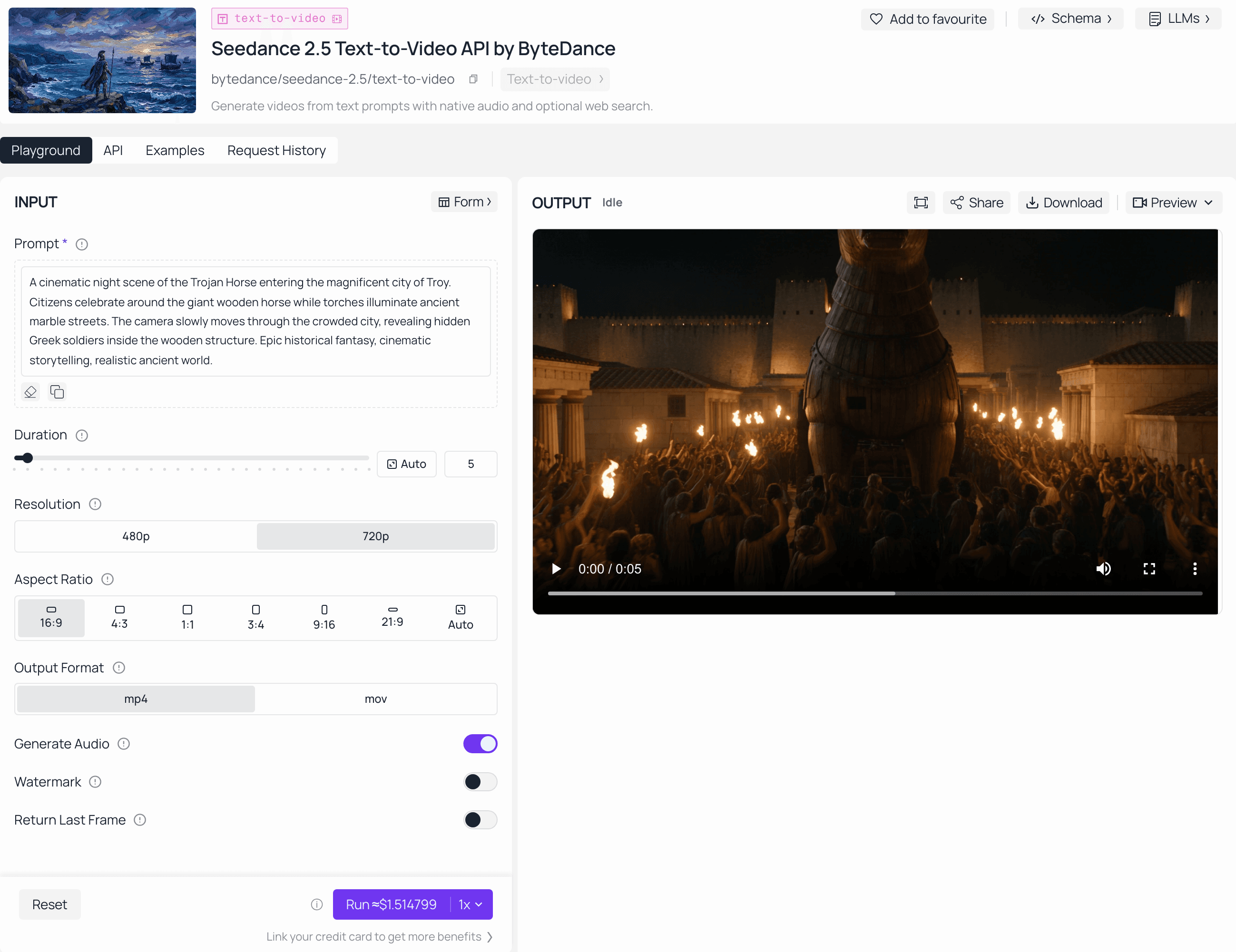
ByteDance released Seedance 2.5 in June 2026, and Atlas Cloud is bringing Day-0 API access to Seedance 2.5 through the same unified endpoints that already serve Seedance 2.0 and 1.5. Final pricing for the 2.5 tier hasn't been announced yet.
Here's the practical part: the reference-binding syntax in this guide, the @Image, @Video, and @Audio tags, already works on Seedance 2.0 today. That means you can test and refine a prompt template right now, on a live endpoint, instead of waiting for 2.5 access to open up.If you want a ready-made starting point, browse our Seedance 2.5 prompt hub for copy-paste prompt examples.
Frequently Asked Questions
How many reference files can I use in one Seedance 2.5 prompt?
A single request can carry up to 50 multimodal reference files. That breaks down to 30 images, 10 video clips, and 10 audio clips, though staying closer to 8 or fewer distinct subjects tends to give steadier results than pushing the full limit.
What's the difference between the dialogue bracket and the sound effect bracket?
Dialogue uses curly braces, like {Hello there.}, and is meant for spoken lines. Sound effects use angle brackets, like , for ambient or incidental sounds. Mixing them up can lead the model to voice a sound effect as if it were a spoken line.
How do I keep a character consistent across a whole video?
Bind the character to one specific reference image early, name exactly what to use from it, such as face, hairstyle, or clothing, and repeat that same name every time the character appears in a later scene or stage. Avoid re-describing their appearance from scratch each time.
What's the difference between a coarse blockout and a fine blockout?
A coarse blockout is simple geometry that mainly hands over motion, paths, and camera cuts. A fine blockout is a complete, detailed model meant to be re-rendered with new materials, colors, or style while keeping its structure and motion intact.
When can I call the Seedance 2.5 API on Atlas Cloud?
Atlas Cloud lists Seedance 2.5 access as coming soon, with pricing still unannounced. Seedance 2.0 and 1.5 are live now on the same platform, so a prompt template built today should transfer directly once the 2.5 endpoint opens.
Conclusion
A strong Seedance 2.5 prompt isn't longer, it's better organized. Start with the six-part formula, bind every reference to a named subject, and break anything over a few seconds into stages with clear end states. From there, the editing, extension, and keyframe templates in this guide slot in wherever your project needs them.
Bookmark the templates you'll reuse most, and start testing them today on Seedance 2.0 through Atlas Cloud while Seedance 2.5 access rolls out.





