Jak usunąć osobę ze zdjęcia to moment, w którym ludzie napotykają ścianę, jakiej nigdy nie napotkali przy wymazywaniu kosza czy linii energetycznej. Kosz to jeden kształt na jednym tle. Osoba to cztery problemy nałożone na siebie.
Włosy rozpadają się na setki pasm, za którymi żadna pętla nie podąża czysto. Na ziemi jest cień, a często także odbicie w wodzie lub szybie. Na zdjęciu grupowym osoba, którą chcesz usunąć, zwykle dotyka osoby, którą chcesz zachować.
Ten przewodnik omawia te cztery przypadki w kolejności od najłatwiejszego do najtrudniejszego, używając tego samego darmowego gumki w przeglądarce w każdym teście. Ostatnie dwie sekcje dotyczą sytuacji, w której wymazywanie jest niewłaściwym narzędziem, oraz pytania, czy prawdziwą osobę w ogóle należy wymazywać.
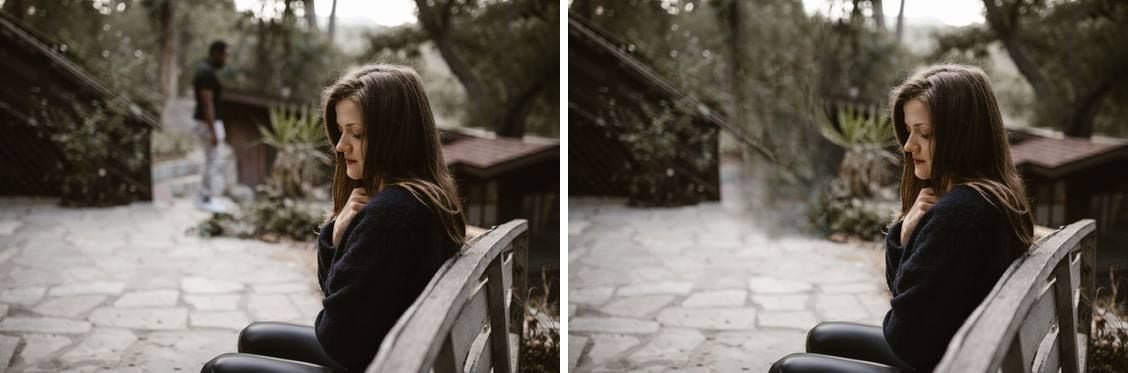
Najważniejsze wnioski
- Zaznacz cień osoby i wszelkie odbicia w tymsamym przebiegu. Brakujący cień zdradza fałsz szybciej niż brakująca osoba.
- Przybliż widok, aż osoba zajmie około połowy widocznej ramki, zanim narysujesz zaznaczenie. Narysowana krawędź decyduje o wyniku.
- Gdy osobanakłada sięna kogoś, kogo zachowujesz, wykonaj dwa przebiegi: najpierw ciało, potem pozostały fragment.
- Jeśli osoba zasłania linię prostą, taką jak balustrada, ościeżnica lub ściana z płytek, kadrowanie bije wymazywanie.
- Darmowa gumka AI do obrazów Atlas Cloud działa w przeglądarce bez konta, a zdjęcie pozostaje na Twoim urządzeniu.
Jak usunąć osobę ze zdjęcia w przeglądarce
Atlas Cloud uruchamia gumkę do obiektów, która wykonuje całą pracę w karcie przeglądarki. Strona mówi to wprost: „Obrazy przetwarzane lokalnie w przeglądarce. Zasoby nie są przesyłane do OSS ani przetwarzane przez backend AtlasCloud". W przypadku zdjęcia z prawdziwą osobą ma to większe znaczenie niż przy zdjęciu zaparkowanego samochodu.
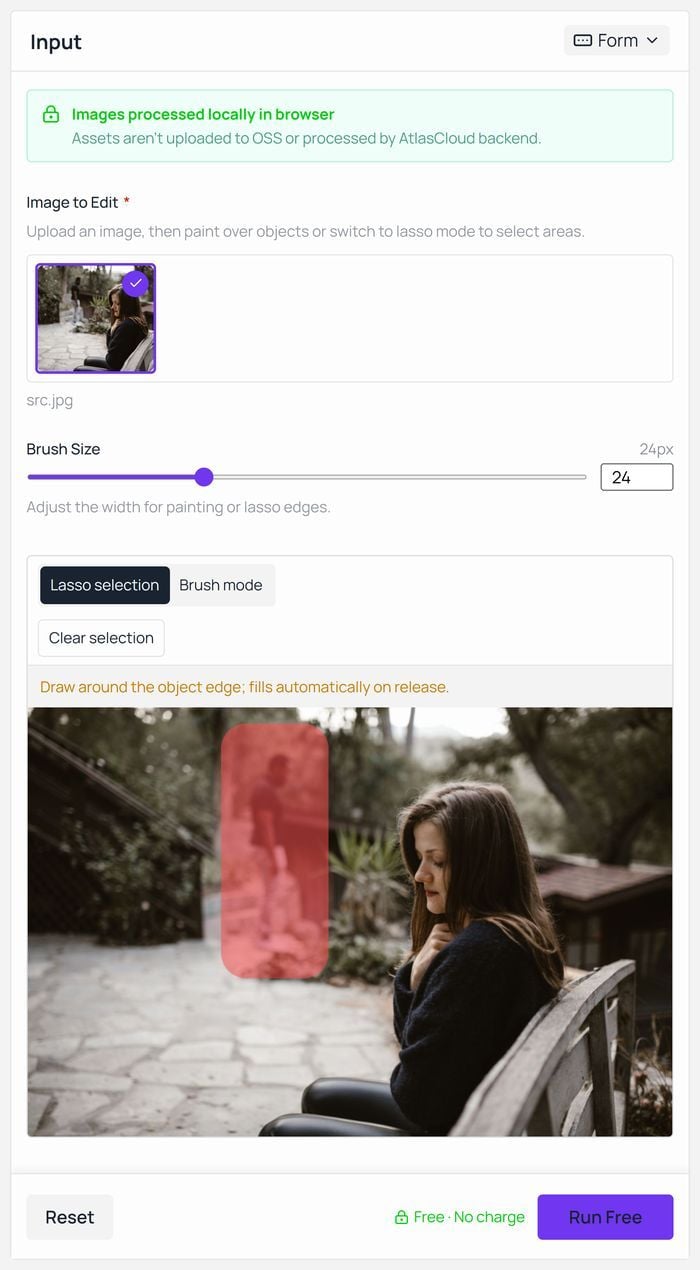
Pięć kroków od początku do końca:
- Otwórz gumkę w przeglądarce i przeciągnij zdjęcie na obszar przesyłania.
- Uszczypnij lub przewiń, aż osoba zajmie około połowy obszaru roboczego. Wszystko poniżej zależy od tego.
- Zaznaczenie lasso jest już włączone. Narysuj wokół konturu osoby i puść. Podpowiedź na obszarze roboczym ujmuje to dobrze: „Narysuj wokół krawędzi obiektu; wypełnia się automatycznie po puszczeniu".
- Kliknij Uruchom za darmo i poczekaj. Pierwsze uruchomienie ładuje model raz, więc zostań przy Wi-Fi na ten jeden raz.
- Sprawdź wynik w pełnym rozmiarze, a następnie Pobierz.
Strona nie wymaga logowania. Jej FAQ odpowiada na to wprost: „Konto nie jest potrzebne w żadnym momencie", i wymienia „bez kredytów, bez dziennych limitów" dotyczących tego, ile wymazujesz. Należy do tego samego zestawu darmowych narzędzi AI, które otwierają się bez bramki e-mailowej.
Lasso czy pędzel: zaznaczanie osoby bez przycinania jej
Oba tryby zaznaczania znajdują się na tym samym obszarze roboczym, a większość usunięć osób wykorzystuje oba.
| Zaznaczenie lasso | Tryb pędzla | |
|---|---|---|
| Jak to działa | Narysuj pętlę wokół konturu, wypełnia się po puszczeniu | Pomaluj obszar, który chcesz usunąć |
| Do czego służy | Całe ciało za jednym razem, łącznie ze szczeliną pod uniesionym ramieniem | Włosy, pozostały skrawek, ogon cienia |
| Co robi suwak rozmiaru | Ustawia szerokość krawędzi pętli | Ustawia szerokość obrysu, od 6 px do 64 px, domyślnie 24 |
| Gdzie się psuje | Zbyt ciasne przyleganie do konturu | Pominięcie cienkiego pasma, którego nie widać przy tym przybliżeniu |
Wyczyść zaznaczenie usuwa maskę bez wpływu na zdjęcie, więc przerysowanie pętli, z której nie jesteś zadowolony, nic nie kosztuje.
Krawędzie włosów: co zostawiają gumki AI do usuwania osób
Włosy to miejsce, w którym rozstrzyga się zaznaczenie. Każda inna część osoby ma krawędź, którą można wskazać. Włosy nie mają, więc kontur, który rysuje Twoje oko, znajduje się gdzieś wewnątrz rzeczywistych pasm.
To, co potem wraca, to nie rozmazanie. To włosy. Środkowa ramka poniżej to to samo zdjęcie i to samo narzędzie co prawa ramka, z pętlą narysowaną tuż wewnątrz jej sylwetki zamiast na zewnątrz niej, a kosmyk wciąż wisi w żywopłocie, gdy osoba, do której należał, zniknęła.
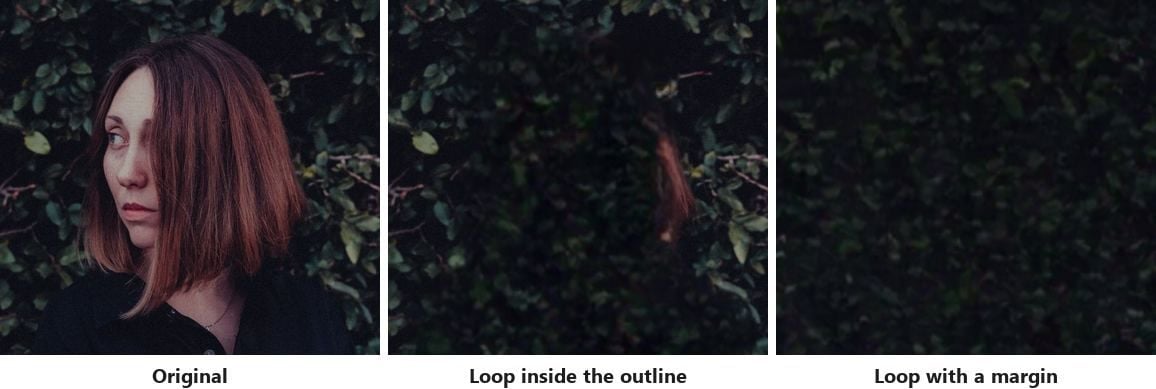
Więc poprawka nic nie kosztuje: narysuj pętlę w widocznej odległości na zewnątrz pasm, w czystym tle. Wypełnienie jest budowane z tego, co otacza zaznaczenie, a zaznaczenie, które kończy się w liściach, zostanie odbudowane z liści.
Poszerzenie pętli kosztuje trochę szczegółów. Prawa ramka to bardziej płaski fragment żywopłotu niż nietknięta ściana liści powyżej, ponieważ większa szczelina daje wypełnieniu mniej danych. Na teksturze ten kompromis warto przyjąć. Na tle z widoczną strukturą jest to sygnał, by przed rozpoczęciem przeczytać sekcję o kadrowaniu poniżej.
Cień na ziemi zdradza wszystko
Spójrz na zdjęcie, zanim cokolwiek dotkniesz, i znajdź słońce. Gdzieś naprzeciwko niego na ziemi jest ciemny kształt przyczepiony do pary stóp. Wymaż osobę, a zostaw ten kształt, a otrzymasz zdjęcie, którego nikt nie potrafi wyjaśnić.
Gdy cień biegnie prosto od stóp w otwarty grunt, obejmij go tą samą pętlą. Zaznaczenie staje się długie i niezgrabne, i to jest w porządku. Gdy cień przecina krawężnik lub znika za balustradą, podziel go: jeden przebieg dla ciała, drugi dla odcinka cienia, aby żadne zaznaczenie nie musiało pochłaniać struktury pomiędzy.
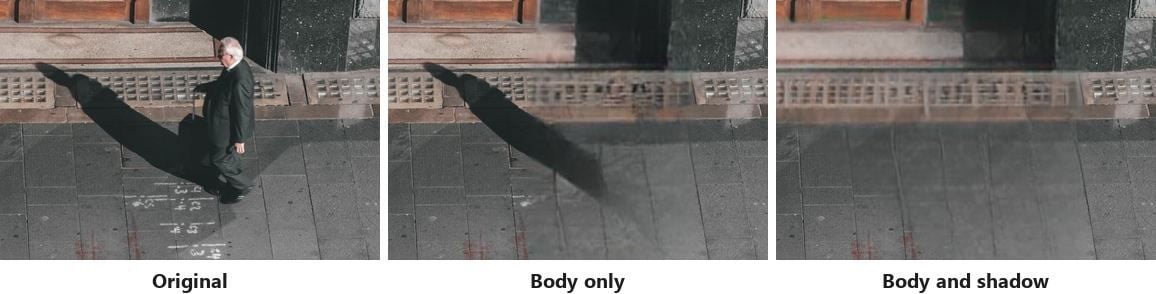
Woda, mokry piasek, polerowane podłogi i witryny sklepowe robią to samo o krok dalej. Odbicie to druga kopia osoby, zwykle łagodniejsza i o niższym kontraście, i całkowicie przetrwa przebieg obejmujący tylko ciało. Potraktuj je jako osobny obiekt i daj mu własny przebieg.
Jak usunąć jedną osobę ze zdjęcia grupowego
Zdjęcie grupowe zmienia matematykę. Każda dodatkowa osoba to kolejna krawędź, którą wypełnienie musi uszanować, a osoba, którą usuwasz, rzadko stoi w pustym miejscu.
Poradniki, jak usuwać osoby ze zdjęć, zwykle zakładają łatwą wersję, czyli kogoś stojącego na końcu rzędu. Obejmij go pętlą z marginesem w tło obok, zabierz ze sobą jego cień, a narzędzie odbuduje ścianę lub trawnik. Ktoś w środku to inne zadanie, ponieważ tło za nim w ogóle nie znajduje się w pliku. Nic na zdjęciu nie zapisało, co zasłaniało jego ciało, więc cokolwiek się tam pojawi, jest wymyślone.
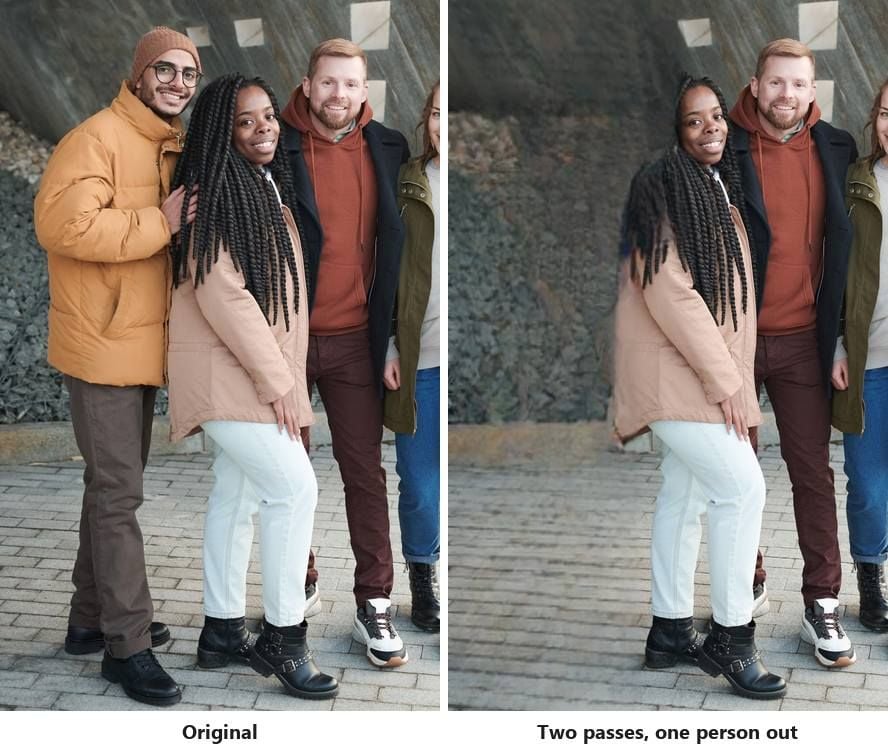
To dobrze znany problem, a nie nowy. W jednym wątku na r/photoshop pewien pracujący projektant opisał, jak poproszono go o usunięcie jednej osoby z portretu dziesięcioosobowej kancelarii prawnej, gdzie nachodziła na miejsce na sofie i nogi kolegi.
Nie było zapasowej klatki pomieszczenia, z której można by pożyczyć, i to jest ograniczenie, jakie plik narzuca każdemu narzędziu. Cokolwiek trafi w tę lukę, musi zostać wymyślone, ponieważ nic na zdjęciu tego nie zapisało.
Gdy usuwana osoba dotyka kogoś, kogo zachowujesz
Nakładanie się to przypadek, w którym jeden przebieg nie wystarczy. Kolejność ma tu większe znaczenie niż rozmiar pędzla.
| Przebieg | Co zaznaczyć | Co sprawdzić potem |
|---|---|---|
| 1 | Ciało, zatrzymując się tuż przed konturem sąsiada | Czy ramię, rękaw lub linia barku sąsiada pozostały nienaruszone |
| 2 | Fragment pozostawiony na sąsiedzie lub obok niego, w trybie pędzla o rozmiarze 6 px do 12 px | Czy krawędź sąsiada czyta się teraz jako jedna ciągła linia |
Przyjmij krawędź sąsiada jako granicę, której nigdy nie przekraczasz. Pętla, która wcina się w zachowaną twarz lub dłoń, każe narzędziu przerysować tę twarz, a przerysowane twarze są oczywiste. Gdy dwoje ludzi jest naprawdę splecionych, ramię w ramię, stosuje się następna sekcja.
Kiedy kadrować zamiast wymazywać
Niektóre usunięcia nie są trudnymi decyzjami. To niewłaściwe narzędzie.
Badania stojące za tą klasą modeli mówią to w swoim streszczeniu. Autorzy pracy z WACV 2022 o inpaintingu dużych masek zauważają, że systemy inpaintingu „często mają trudności z dużymi brakującymi obszarami, złożonymi strukturami geometrycznymi i obrazami o wysokiej rozdzielczości". W praktyce zdradzają to linie proste.
Balustrada, ościeżnica, rząd płytek, warstwa cegieł lub rząd okien — wszystko to musi się spotkać po obu stronach luki. Wypełnienie przesunięte o kilka pikseli czyta się jako błędne nawet dla kogoś, kto tego nie szuka. W środkowej ramce poniżej ciemny pas biegnący przez płytki wypada z linii dokładnie tam, gdzie stał mężczyzna.
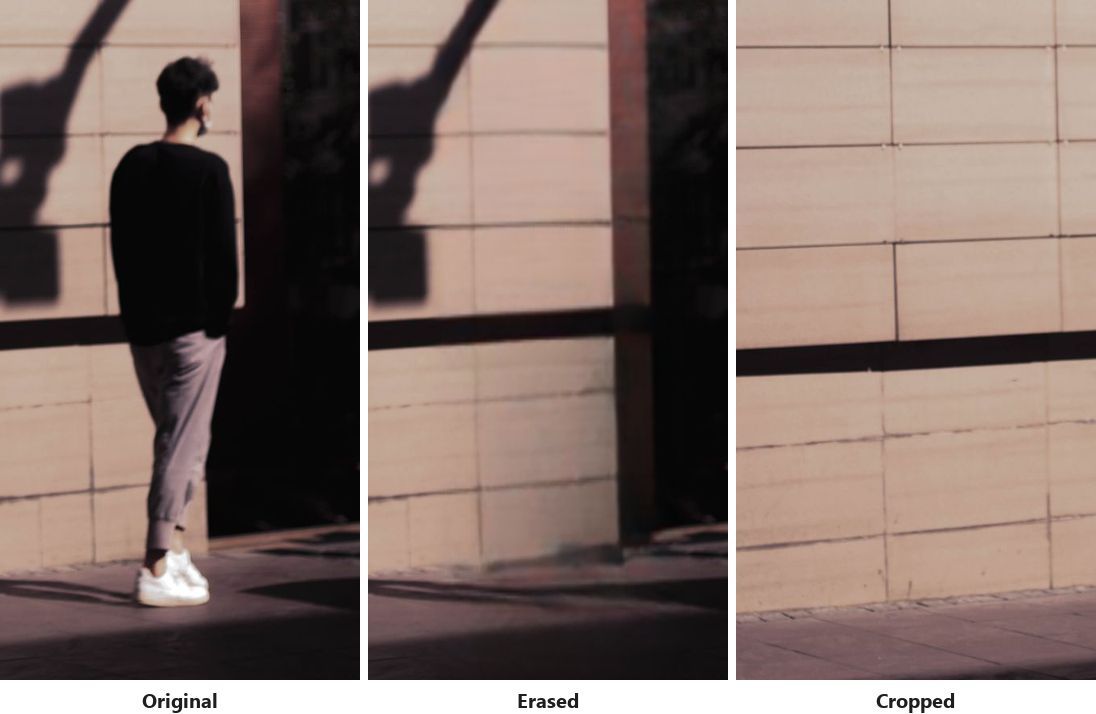
Krótka lista kontrolna rozstrzyga sprawę. Jeśli osoba zajmuje więcej niż około jednej trzeciej ramki, jeśli zasłania linię, która musi się połączyć, lub jeśli jest spleciona z kimś, kogo zachowujesz, sięgnij po narzędzie do kadrowania. Kadrowanie traci piksele, a zachowuje wierność zdjęcia wobec pomieszczenia. Wymazywanie zachowuje piksele, a wymyśla pomieszczenie.
Jeden przypadek bywa mylony z tym powyżej. Jeśli tak naprawdę chcesz, by wszystko za obiektem zniknęło, a nie jedna osoba, to zadanie należy do usuwacza tła, który odcina wzdłuż obiektu, zamiast odbudowywać to, co za nim było.
Czy usuwać kogoś ze zdjęcia, które publikujesz?
Wymazanie nieznajomego z tła zdjęcia z wakacji to Twoja prywatna sprawa. Wymazanie nazwanej osoby ze zdjęcia, które zobaczą inni, to inny czyn i warto poświęcić mu trzydzieści sekund namysłu przed pobraniem.
Fotoreportaż dawno rozstrzygnął swoją wersję tej sprawy. Kodeks etyczny NPPA mówi dziennikarzom wizualnym, by nie „manipulowali obrazami ani nie dodawali lub zmieniali dźwięku w żaden sposób, który mógłby wprowadzić odbiorców w błąd lub przedstawić bohaterów w fałszywym świetle". Większość zdjęć nie jest dziennikarstwem. Test leżący u ich podstaw wciąż jednak obowiązuje: czy zedytowany obraz mówi odbiorcy coś, co się nie wydarzyło.
| Scenariusz | Co wziąć pod uwagę |
|---|---|
| Nieznajomy w tle zdjęcia rodzinnego | Nie ma czego rozważać. Nikt nie jest przedstawiany |
| Były partner na zdjęciu, które trzymasz dla siebie | Twoje zdjęcie, Twoja decyzja, a oryginalny plik wciąż istnieje, jeśli zachowasz kopię |
| Były gość we wspólnym albumie | Inni ludzie w tym albumie tam byli i pamiętają, kto jeszcze był |
| Kolega ze zdjęcia zespołowego na stronie firmy | Zapytaj zespół. Brakująca osoba na zdjęciu pracowników czyta się jako oświadczenie |
| Obraz z wiadomości, dokumentalny lub dowodowy | Powyższy kodeks obowiązuje niezależnie od tego, czy pracujesz w mediach |
| Zdjęcie na konkurs lub dla klienta | Najpierw sprawdź ich zasady. Wiele z nich stawia granicę na usuwaniu treści |
Kwestia lokalnego przetwarzania zasługuje tutaj na swoje miejsce. Gdy edycja odbywa się w karcie przeglądarki, a nie na serwerze, zdjęcie prawdziwej osoby pozostaje zdjęciem, które trzymasz, a nie takim, które oddałeś do zmiany.
Często zadawane pytania
Czy AI usunie osobę ze zdjęcia za darmo?
Tak, i to bez logowania w gumce w przeglądarce powyżej. Strona podaje, że konto nie jest potrzebne w żadnym momencie, i wymienia brak kredytów oraz brak dziennych limitów tego, ile wymazujesz, więc zdjęcie grupowe wymagające czterech przebiegów kosztuje tyle samo co takie wymagające jednego. Darmowe plany gdzie indziej często mierzą liczbę wymazań, co zamienia kłopotliwe nakładanie się w decyzję, czy wydać kolejny kredyt.
Dlaczego miejsce wygląda na rozmyte po usunięciu kogoś?
Dwie różne rzeczy bywają nazywane rozmytymi i wymagają przeciwnych poprawek. Szeroka, przypominająca farbę smuga przez całą lukę oznacza, że zaznaczenie było większe, niż wypełnienie mogło przetworzyć za jednym razem, więc podziel je na dwa lub trzy mniejsze przebiegi. Coś wciąż rozpoznawalnego w luce, kosmyk włosów lub krawędź rękawa, oznacza, że pętla wcięła się wewnątrz konturu i zostawiła część osoby, co pokazuje sekcja o włosach powyżej.
Czy mogę usunąć osobę ze zdjęcia tak, by nie wyglądało na edytowane?
Przez większość czasu tak, jeśli zabierzesz ze sobą cień i wszelkie odbicia oraz nie wejdziesz na krawędzie osób, które zachowujesz. Zrób sobie jeden test przed publikacją: otwórz oryginał i wynik obok siebie w pełnym rozmiarze, a nie w rozmiarze miniatury. Wypełnienie, które wygląda czysto w podglądzie na telefonie, często pokazuje miękkie zszycie, gdy ktoś je otworzy, a to właśnie widok, w którym Twoje zdjęcie będzie oceniane.
Czy usunięcie osoby zmienia rozdzielczość zdjęcia?
Nie. Gumka w przeglądarce zwraca plik PNG o tej samej szerokości i wysokości co plik, który wgrałeś, więc oryginał o szerokości 4000 pikseli wraca jako 4000 pikseli szerokości. Na co warto się przygotować przy pobieraniu: plik do pobrania to PNG, nawet jeśli wgrałeś JPG, więc plik na dysku będzie zauważalnie większy niż ten, od którego zacząłeś. Przekonwertuj go z powrotem na JPG przed wysłaniem mailem, jeśli rozmiar ma znaczenie.
Co jeśli osoba jest w środku tłumu?
Usuń ją po kawałku. Obejmij pętlą głowę i ramiona, uruchom, a potem wróć po tors i nogi w drugim i trzecim przebiegu. Każdy przebieg pozostawia więcej rozwiązanego tła wokół następnego zaznaczenia, czyli dokładnie to, czego potrzebuje wypełnienie jako odniesienia. Jeśli trzy przebiegi wciąż zostawiają smugę, tłum jest wystarczająco gęsty, że kadrowanie lub zmiana kadru będzie wyglądać lepiej niż jakiekolwiek wymazywanie.
Podsumowanie
Cztery rzeczy decydują o tym, czy edycja się utrzyma, i tylko jedna z nich to osoba. Włosy potrzebują marginesu. Cienie i odbicia potrzebują własnego przebiegu. Kontur sąsiada to linia, której nie przekraczasz. Linia prosta biegnąca za kimś to sygnał, by kadrować, a nie wypełniać.
Pracuj w tej kolejności, a większość zdjęć zajmie dwa przebiegi i kilka minut w karcie przeglądarki. Te, które się opierają, mówią Ci coś prawdziwego: plik nie zawiera tego, co było za tą osobą. Znajomość sposobu usunięcia osoby ze zdjęcia to połowa umiejętności, a wiedza, które zdjęcia zostawić w spokoju, to druga połowa.





